PC game subs: live subtitles and English translation for voiced games (Windows)
To get live subtitles for a PC game, let an app listen to the game’s voice lines as they play instead of looking for a subtitle file or a patch. RealSub is a Windows app that recognizes spoken Japanese, Chinese or English on your own machine and shows the words in a subtitle bar floating over the game. The Full Version adds an English translation line under each sentence, so you can play a Japanese or Chinese voiced game and read along in English.
Below: which games this suits, how it works, how to set it up, and tips for playing with subtitles on screen.
Which games you can subtitle
If the dialogue is voiced, it can be subtitled as it is spoken. That covers:
- Visual novels. Fully voiced or partly voiced scenes, line by line as each character speaks.
- Story-driven RPGs and action games. Voiced dialogue during exploration and conversations.
- Cutscenes. Story scenes, trailers and in-game movies, including the ones that never came with subtitles.
- English-voiced games. Readable English subtitles for every spoken line, handy when the dialogue is fast, quiet or buried under music and effects.
- Game streams. Other people’s playthroughs, with both the streamer’s voice and the game audio subtitled.
How it works: subtitle the game’s audio
RealSub takes the sound your PC is already playing, just before it reaches your speakers or headphones, and turns the speech into text as it is spoken. Nothing is installed into the game and no game files are touched, so it works with any game and any engine, and the game launches and updates as usual. If the game makes a sound, it can be subtitled.
Speech recognition runs on your own PC. The original-language subtitles keep coming with no internet connection, and your audio never leaves the machine.
Set up live subtitles for a game in three steps
1. Get RealSub from Steam and pick your languages. The first-time wizard asks for your interface language, the recognition language (what the characters speak: Japanese, English, Chinese, or Auto) and the language to translate into. For a Japanese or Chinese game, choose English as the translation language. The recognition models are bundled with the app: nothing extra to download and no account to create. You can change everything later in Settings.
2. Set the audio source to the game only. Under Settings → Transcription → Audio source, pick the game (it is listed by its program name). Only the game’s sound goes into your subtitles, while music playing in the background, chat apps and notification sounds stay out. An app appears in the list once it has played a sound, so start the game first and press Refresh. The same list is also in the tray menu.
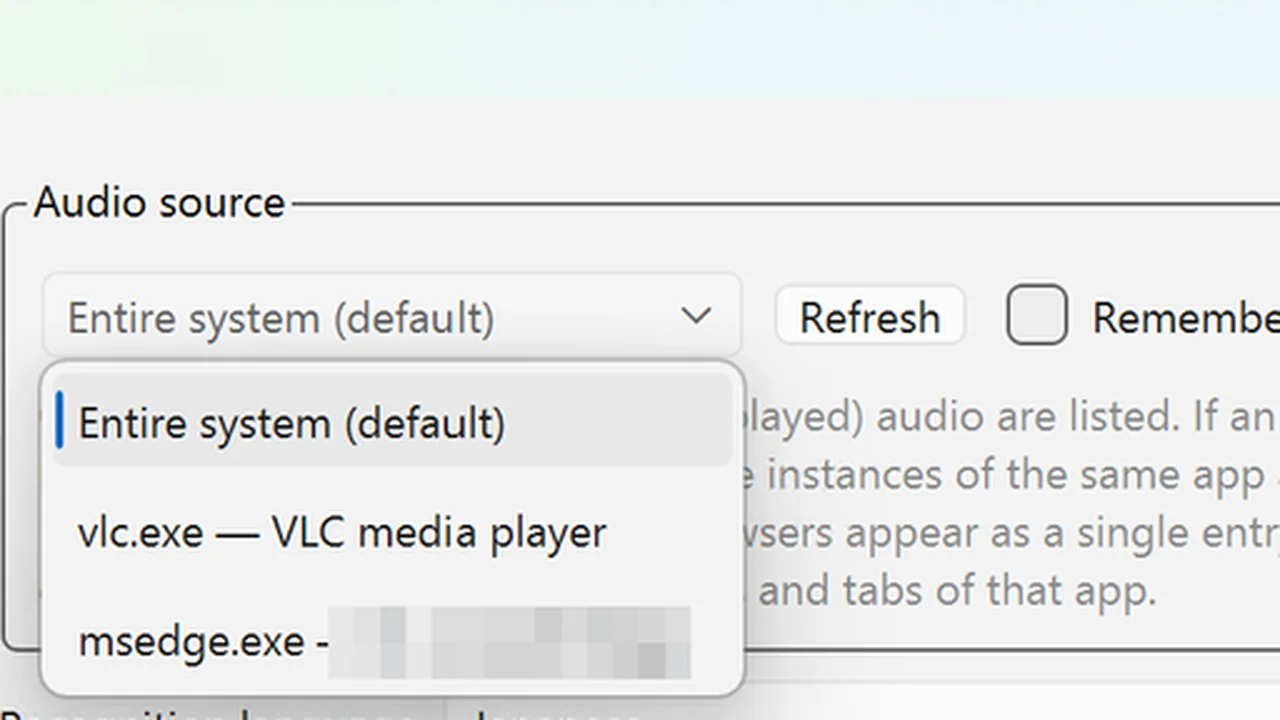
3. Turn on translation and play. With the Full Version, set “Translate to” under Settings → Translation and the English translation appears under the original, line by line. The default “Local” translation runs on your PC once the free local translation model is installed, so translations appear almost together with the original and work offline, a good fit for back-and-forth game dialogue.
Tips for playing with live subtitles
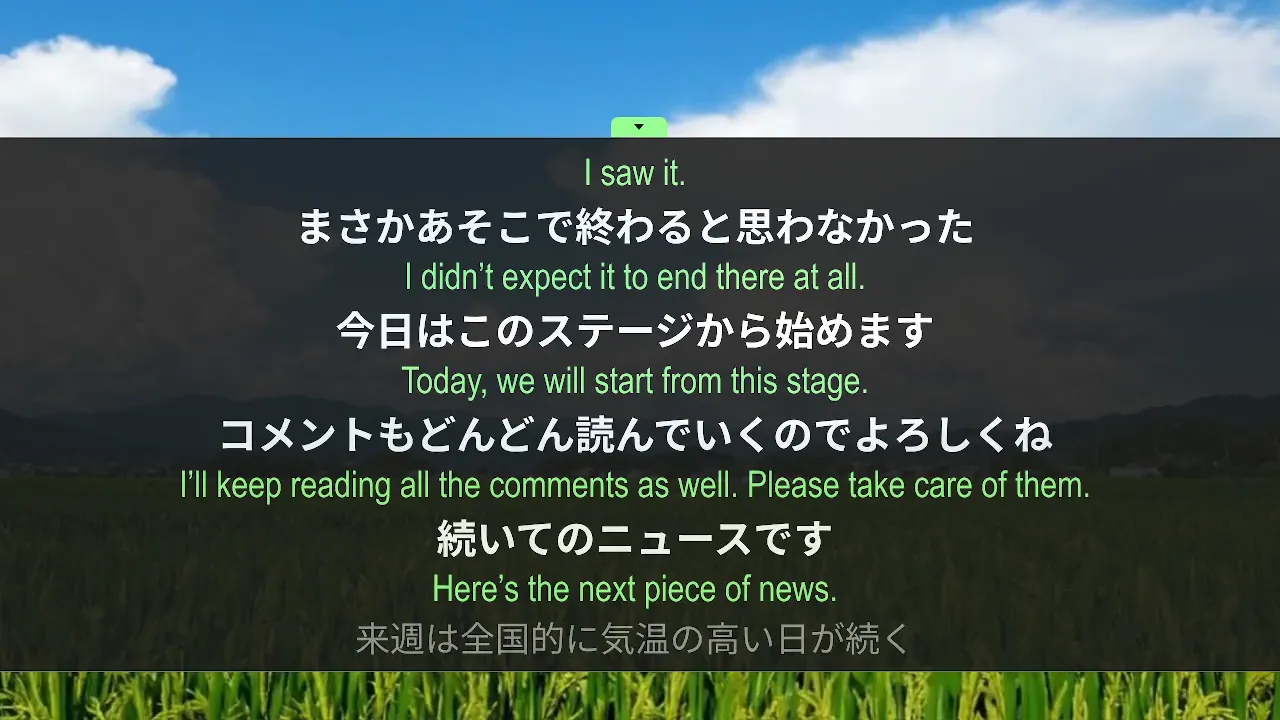
Show the translation only. The subtitle bar can show three kinds of line: the white original, a grey in-progress line that updates live, and the green translation. To read just the English, turn off “Show source text” and “Show in-progress text” under Settings → Subtitles → Display. If you are learning the language, leave all three on and compare the lines as you play. The FAQ has the details.
Place the bar where it suits the game. The subtitle bar floats on top of the game and lets clicks pass straight through, so you can keep clicking through dialogue and picking choices. Hover over it to reveal a frame you can drag and resize, for example just above the game’s text box or along the bottom of a cutscene.
Pick a look that fits the picture. “Transparent (outlined text)” shows outlined text with no background, blending into the game like built-in subtitles. “Dark background” stays readable on busy, bright scenes. Font, size and colour are yours to choose.
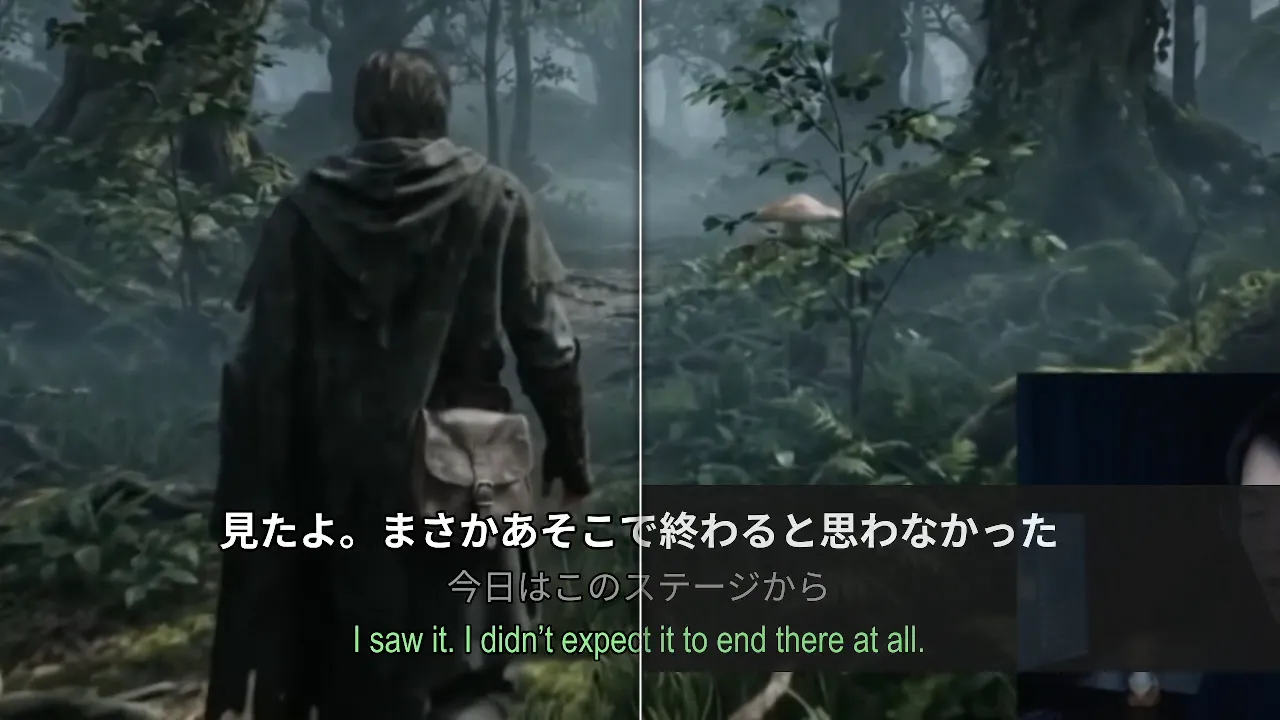
Play in windowed or borderless window mode. The subtitle bar then stays on top of the game picture the whole time.
Raise the voice volume, lower the music. In the game’s sound settings, turn voices up and background music down: the dialogue comes through clearer and recognition gets more accurate. Playing at low volume is fine too, since “Auto gain”, on by default, boosts very quiet audio for recognition without changing what you hear.
Hide subtitles without leaving the game. Press Ctrl+Alt+H to show or hide the subtitles, and Ctrl+Alt+S to start or stop transcription. RealSub stays in the system tray while you play.
Scroll back missed lines, keep the story as SRT/TXT
Clicked ahead too fast? Scroll back instead of replaying the scene. Hover over the subtitle bar and click the small arrow on its top edge to expand it, then scroll up through recent lines and their translations and copy anything you need. Scrolling back is part of the free base app.
To keep a whole play session, the Full Version saves subtitles to history as you go; afterwards you can export them as SRT subtitles or plain TXT (original only, or bilingual), or export the audio as MP3. That makes it easy to look back over the story or collect new words.
Works for movies in any media player, too
The same setup gives you live subtitles for anything else your laptop or PC plays: movies in any media player, videos in the browser, streams and lectures. Pick the player as the audio source, or leave it on the whole system. See Live subtitles for anything playing on your PC.
Frequently asked
Is there a free version? Yes. The base app is free and gives you complete live transcription with no usage limit: the characters’ Japanese, Chinese or English speech becomes subtitles in that language. Choosing the audio source, scrolling back and both subtitle looks are included. The English translation line, history and SRT / TXT / MP3 export come with the Full Version DLC, and a 7-day full-featured trial starts the first time you use RealSub. See the FAQ.
Do I need to patch the game or install a mod? No. RealSub only listens to the audio your PC plays, so it works with any game, launcher or engine with nothing added to the game. See Can I use it with my video player, browser or games?
Can it subtitle just the game? Yes. Set the audio source to the game, and only its sound is transcribed. See Can it subtitle just one app or window?
Does it need the internet? No. Recognition happens on your PC and works offline. With the default local translation, the subtitle text stays on your PC too. The privacy policy has the details.
Which languages does it handle? RealSub recognizes Japanese, English and Chinese, and translates between Japanese, English, Simplified Chinese and Traditional Chinese. For video, see How to watch Japanese video that has no subtitles and How to translate Chinese video to English with live subtitles.
Get RealSub on Steam · FAQ · Home
The base app is free.