Live subtitles for anything playing on your PC (Windows)
To get live subtitles for anything playing on your PC, use an app that listens to your PC’s audio output instead of a single website or player. RealSub is a Windows app that does exactly that: it recognizes spoken Japanese, English or Chinese on your own machine as it plays and shows the words in a subtitle bar floating on top of every window. The Full Version can add a translation line under the original, in English, Japanese, or Simplified or Traditional Chinese.
Below: what you can subtitle this way, how it works, how to set it up, and how to fit the subtitles to what you are doing.
What you can put live subtitles on
Because RealSub works on the sound itself, the source does not matter. If your PC can play it, it can be subtitled:
- Videos. Anything in a browser tab, a desktop video player, or a downloaded file, whatever the website.
- Live streams. Streams and their replays, in the browser or a streaming app, with no subtitle file needed.
- Games. Voiced dialogue in games, and other people’s game streams.
- Lectures and webinars. Online classes, recorded talks and conference sessions.
- Calls. The other people’s voices in a voice chat or a video call, as your PC plays them.
- Podcasts and audio. Long talk shows and interviews that never came with a transcript.
How it works: subtitle the audio, not the file
Most subtitle tools are tied to one place: a single streaming site, one browser, or a file you upload and wait for. RealSub instead takes the audio your PC is already playing, just before it reaches your speakers or headphones, and turns the speech into text as it is spoken. Sounds in your room and your own microphone are not part of it, so only what the PC plays ends up on screen.
Speech recognition runs on your own PC. The original-language subtitles keep coming with no internet connection, and your audio never leaves the machine. Recognized speech: Japanese, English and Chinese, or Auto to detect which one is being spoken.
Set up live subtitles in three steps
1. Get RealSub from Steam and run the first-time wizard. It asks for your interface language, the recognition language (what you are listening to) and the language to translate into. The recognition models are bundled with the app: nothing extra to download and no account to create. You can change everything later in Settings.
2. Leave the audio source on the whole system, or pick one app. Under Settings → Transcription → Audio source, “Entire system (default)” subtitles everything your PC plays. To subtitle just one thing, pick that app, such as your browser, video player or game; notification sounds and other windows then stay out of your subtitles. An app appears in the list once it has played a sound, so start playback first and press Refresh. The same list is also in the tray menu.
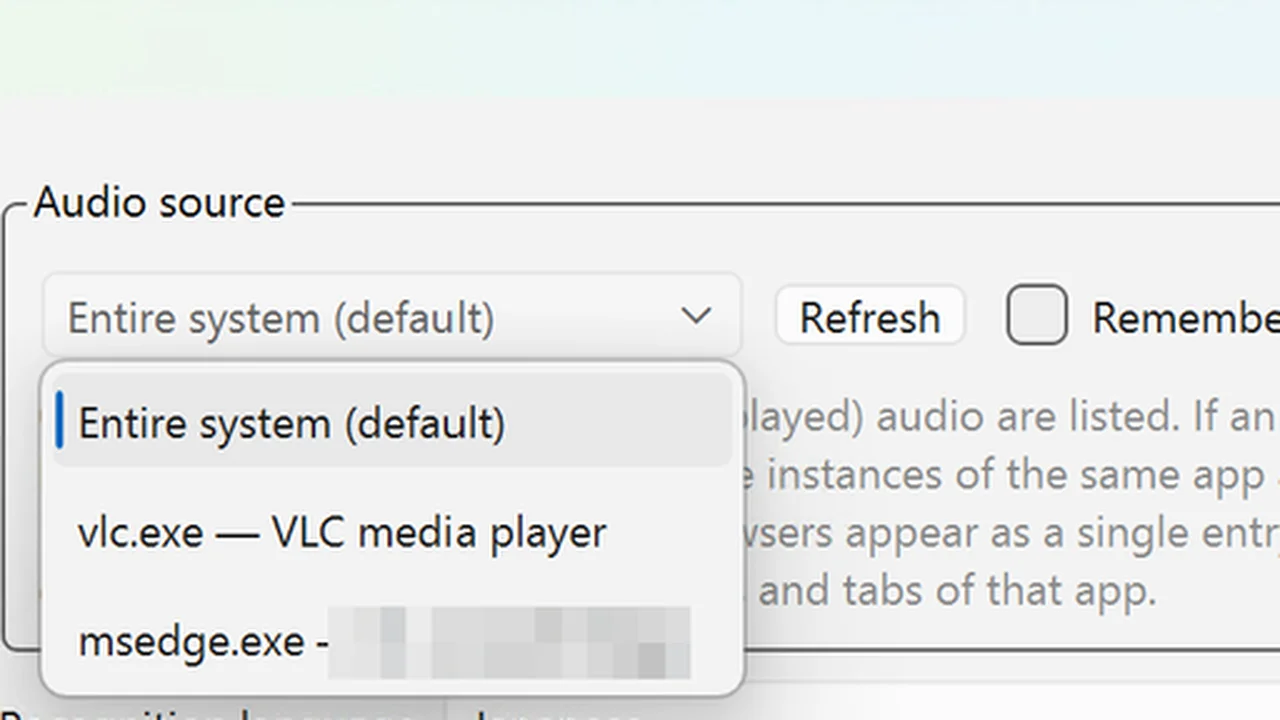
3. Play something and place the bar. Words appear while the speaker is still talking and settle into a finished line at the end of each sentence. The subtitle bar lets clicks pass straight through, so it never blocks the app underneath. Hover over it to reveal a frame you can drag and resize.
RealSub stays in the system tray and keeps subtitling while you use other apps. Two global hotkeys: Ctrl+Alt+H shows or hides the subtitles, and Ctrl+Alt+S starts or stops transcription. Listening at low volume is fine too: “Auto gain”, on by default in the transcription settings, boosts very quiet audio for recognition without changing what you hear.
Fit the subtitles to what you are doing
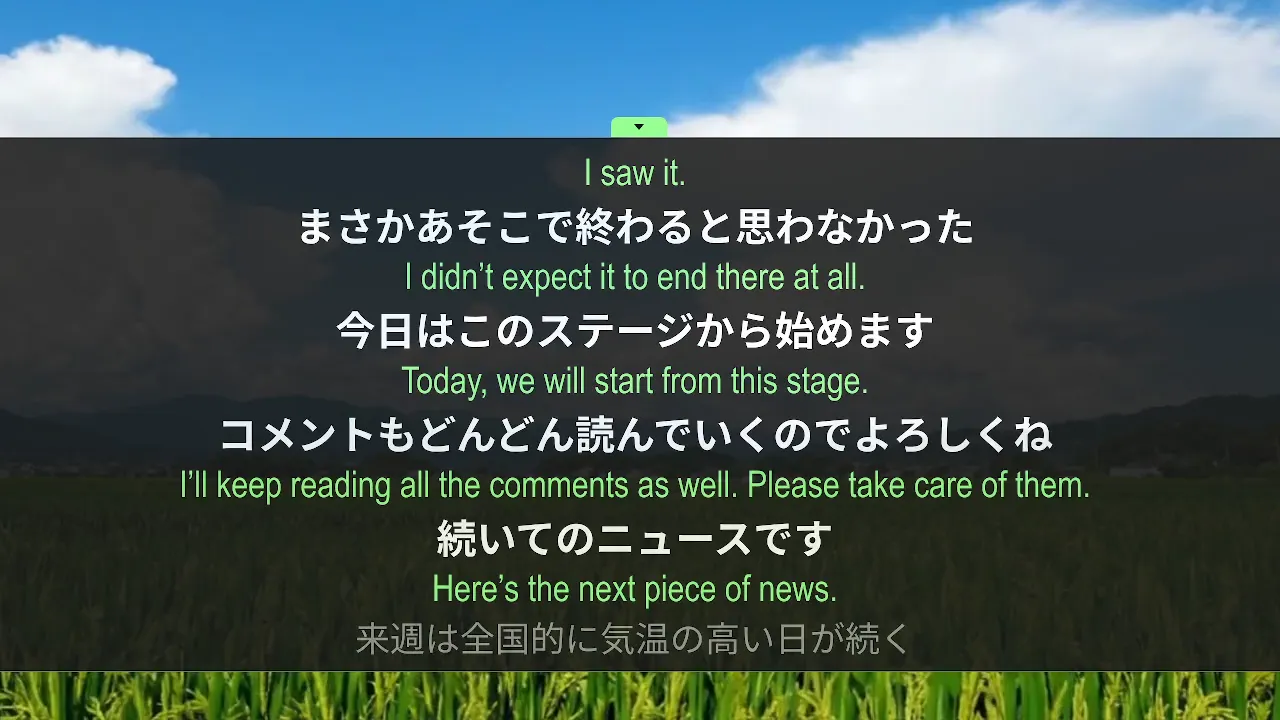
The subtitle bar can show three kinds of line: the white original, a grey in-progress line that updates live while speech is being recognized, and the green translation (Full Version). Each can be switched on or off under Settings → Subtitles → Display:
- Original only. Subtitles in the language being spoken, for following fast talk or practising listening.
- Translation only. Turn off the original and in-progress lines to read just the translation.
- Both together. Read the original and the translation line by line, handy when learning a language.
A line you turn off folds away and the bar gets shorter. The FAQ has the details.
There are two looks, both with your choice of font, size and colour:
- Dark background. A dark bar that stays readable on any picture, a good fit for games and busy screens.
- Transparent (outlined text). No background, just outlined text floating right on the picture, much like built-in subtitles.

Live subtitles with translation
With the Full Version, set “Translate to” under Settings → Translation and a translation line appears under each original sentence. Translation works between Japanese, English, Simplified Chinese and Traditional Chinese. The default “Local” translation runs on your PC once the free local translation model is installed, so translations appear almost together with the original and work offline. Microsoft Translator and your own local or LAN server (OpenAI-compatible) are also available as translation sources.
Scroll back, then keep a transcript
Missed a line? Scroll back instead of rewinding. Hover over the subtitle bar and click the small arrow on its top edge to expand it, then scroll up through recent subtitles and copy anything you need. Scrolling back is part of the free base app.
To keep a whole session, the Full Version saves subtitles to history as you go; afterwards you can export them as SRT subtitles or plain TXT (original only, or bilingual), or export the audio as MP3. That turns a lecture, meeting recording or stream into notes you can search later.
Frequently asked
Is there a free version? Yes. The base app is free and gives you complete live subtitles in the spoken language with no usage limit, including choosing the audio source, scrolling back and both subtitle looks. The translation line, history and SRT / TXT / MP3 export come with the Full Version DLC, and a 7-day full-featured trial starts the first time you use RealSub. See the FAQ.
Does it work with any app? Yes. RealSub subtitles the audio Windows is playing, so it works with any browser, video player, streaming app or game, with no plugin needed. See Can I use it with my video player, browser or games?
Can it run in the background? Yes. RealSub stays in the system tray and keeps the subtitle bar on top of other windows while you work, play or browse.
Is my audio uploaded? No. Recognition happens on your PC and works offline. With the default local translation, the subtitle text stays on your PC too. The privacy policy has the details.
When was RealSub released? RealSub was released on Steam on October 28, 2026. For specific situations, see How to translate Chinese video to English with live subtitles and How to watch Japanese video that has no subtitles.
Get RealSub on Steam · FAQ · Home
The base app is free.