Watch Japanese Streams with Live English Subtitles (VTuber & Games)
Japanese streams move fast. A chat stream jumps from topic to topic, a game stream mixes the streamer’s reactions with the game’s own dialogue, and live streams rarely come with subtitles. Waiting for a translated clip means missing the stream itself.
RealSub subtitles the stream as you watch. It recognizes the spoken Japanese your PC plays, on your own machine, and shows it in a subtitle bar floating over the stream. With the Full Version, an English translation appears under each Japanese sentence.
Below: what it works on, how to set it up, tips for watching streams with subtitles, and how to keep a transcript afterwards.
What it works on
RealSub listens to the sound your PC plays, so the stream doesn’t need captions of its own and the site doesn’t matter:
- VTuber streams. Chat streams, singing-stream talk segments, collabs and announcements.
- Game streams. The streamer’s commentary and the game’s voiced dialogue, as they play.
- Talk and chat streams. Long, casual conversation with no script.
- Live events. Online concerts’ MC segments, showcases, presentations and other Japanese live broadcasts.
- Archives and clips. Replays you watch later and short clips, subtitled the same way as the live stream.
YouTube, Twitch or any other site in your browser, or a desktop streaming app: if your PC plays it, RealSub can subtitle it.
Speech recognition runs on your PC with the models bundled in the app, and your audio never leaves the machine. Japanese words appear while the streamer is still talking and settle into a finished line at the end of each sentence.
Set up live English subtitles for a stream
1. Get RealSub from Steam and run the first-time wizard. Pick Japanese as the language you are listening to and English as the language you want to read. The recognition models are bundled with the app: nothing extra to download and no account to create. You can change both later in Settings.
2. Set the audio source to the browser or app you watch in. Under Settings → Transcription → Audio source, “Entire system (default)” subtitles everything your PC plays. Pick the browser or streaming app the stream is playing in, and only its sound becomes subtitles: notification sounds, music in another app and your voice chat stay out. An app appears in the list once it has played a sound, so start the stream first and press Refresh. The same list is also under “Audio source” in the tray menu.
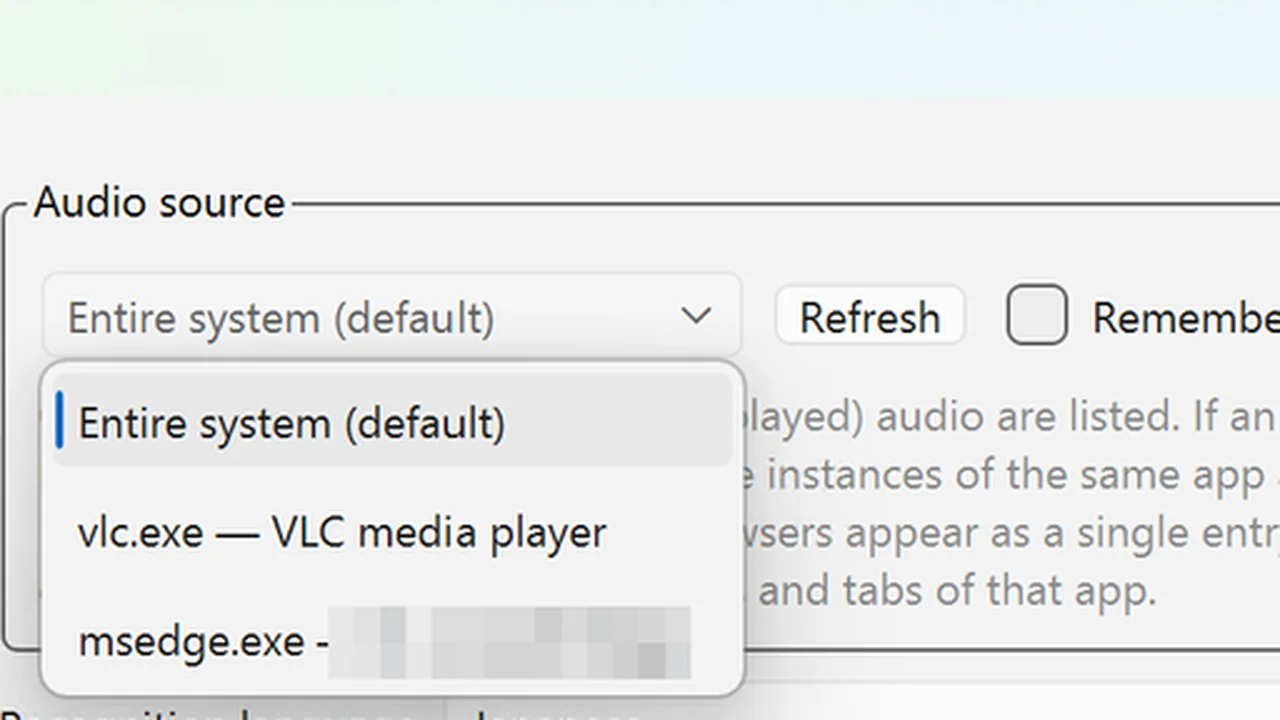
3. Turn on translation and play the stream. With the Full Version, set “Translate to” to English under Settings → Translation, and each Japanese sentence gets an English line underneath. The default “Local” translation runs on your PC once the free local translation model is installed, so the English appears almost together with the Japanese.
RealSub stays in the system tray while you watch. Ctrl+Alt+H shows or hides the subtitles, and Ctrl+Alt+S starts or stops transcription.
Tips for watching Japanese streams with subtitles
Keep chat and the facecam visible. Hover over the subtitle bar to reveal a frame you can drag and resize. Put it where it doesn’t cover the chat, the streamer’s model or facecam, or the game’s own text box: along the bottom of the video, for example, or across the top.
Lock the bar once it’s in place. Choose “Lock subtitle bar” in the tray menu and the bar stays put while clicks go straight to the page below, so you can type in chat or use the player without moving it. To unlock, hover over the bar and click the small lock at its corner, or choose “Unlock subtitle bar” in the tray menu.
Keep earlier translations on screen for fast talkers. Under Settings → Subtitles → Display, set “Keep previous translations (lines)” to 1, 2 or 3. The last few English lines stay under the current one, so a quick back-and-forth doesn’t push a line away before you finish reading it. See keeping previous translations.
Scroll back to reread. Missed a joke? Hover over the subtitle bar and click the small arrow on its top edge to expand it, then scroll up through recent Japanese and English lines and copy anything you need. Scrolling back is part of the free base app.
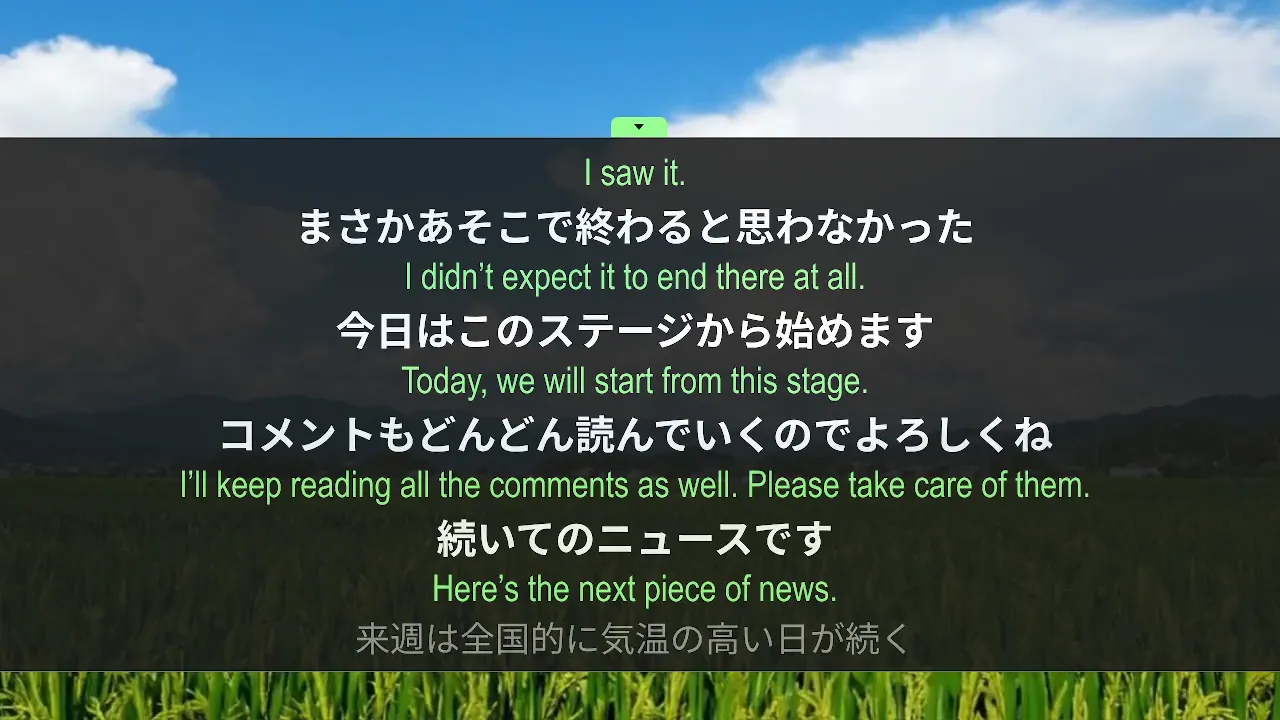
Use the outlined look for a native-subtitle feel. In Settings → Subtitles, “Transparent (outlined text)” shows outlined text with no background, so the subtitles sit on the stream much like built-in ones. “Dark background” stays readable over bright, busy overlays. Font, size and colour are yours to choose.
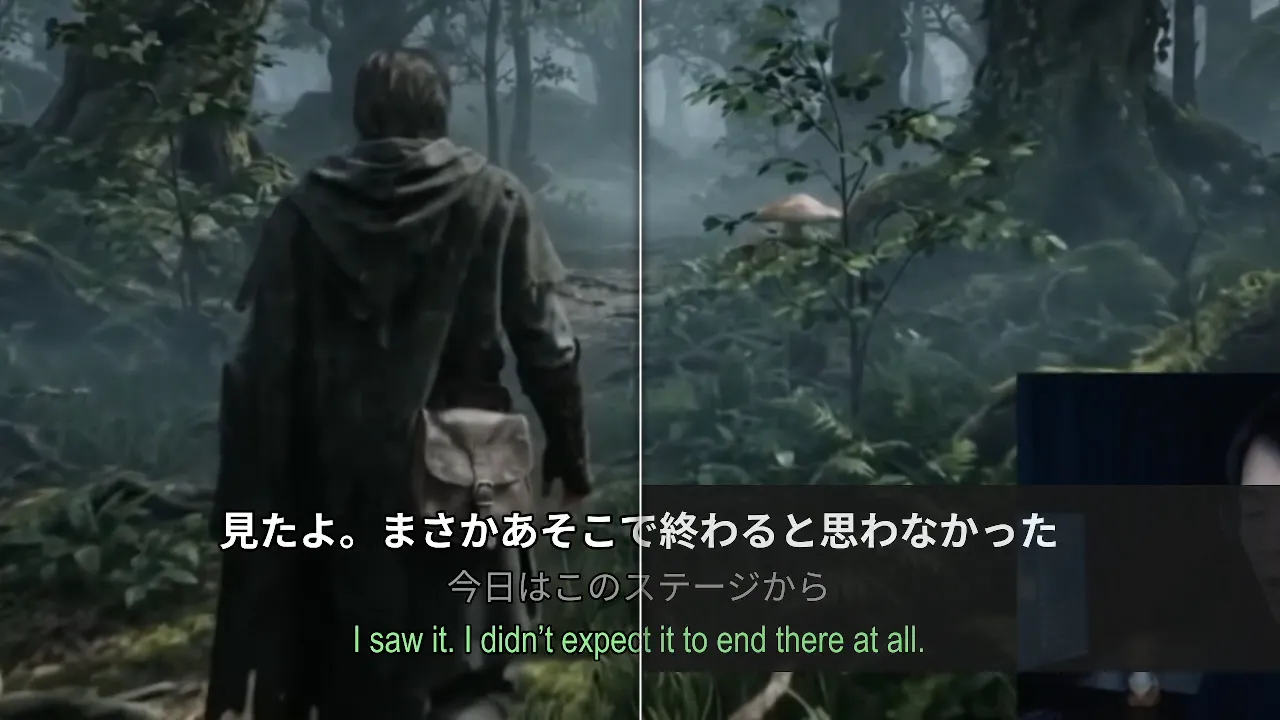
Read Japanese and English together if you’re learning. The bar shows the white Japanese original, a grey in-progress line and the green English translation. Keep all three to pick up the casual phrases streamers use, or turn off “Show source text” and “Show in-progress text” to read English only. The FAQ has the details.
Game streams: everything the stream plays gets subtitled. RealSub captures what the browser or app plays, so both the streamer’s voice and the game’s voiced lines become subtitles, in the order you hear them. Collabs work the same way: everyone’s speech comes through as it is spoken.
Archives and clips work the same. Open a replay or a clip and press play; there is nothing different to set up.
After the stream: history and SRT/TXT export
With the Full Version, RealSub saves the subtitles to history as you watch. Open “History…” from the tray menu to look back at a stream, then use “Export SRT…” or “Export TXT…” and choose “Original only” or “Bilingual (original + translation)”. Turn on “Save audio recording” under Settings → History and you can also use “Export audio…” to save the stream’s sound as MP3. A long chat stream becomes a bilingual transcript you can search and review later.
Frequently asked
Does the stream need to have captions? No. RealSub makes subtitles from the stream’s audio, so streams with no captions at all are subtitled as they play.
Does my audio leave the PC? No. Recognition happens on your PC, and with the default local translation the translation runs on your PC too. See Does local translation send my subtitles online? and the privacy policy.
Can I use it on any streaming site? Yes. RealSub subtitles the audio Windows plays, so it works in any browser and with any streaming app, with no extension or plugin. See Can I use it with my video player, browser or games?
Does it work with members-only or paid streams? RealSub simply listens to what your PC plays, so any stream you can watch on your PC can be subtitled, the same as a public one.
What about collabs with several people talking? Everyone’s Japanese is subtitled as it is spoken, in the order you hear it, with the English translation under each sentence.
Is there a free version? Yes. The base app is free and gives you complete live Japanese subtitles with no usage limit, including choosing the audio source, scrolling back and both subtitle looks. The English translation line, history and SRT / TXT / MP3 export come with the Full Version DLC, and a 7-day full-featured trial starts the first time you use RealSub. See the FAQ.
For Japanese videos in general, see How to watch Japanese video that has no subtitles; to subtitle the games you play yourself, see PC game subs: live subtitles for voiced games.
Get RealSub on Steam · FAQ · Home
The base app is free.